How Copy & Link Works
Below is our guide to setting up and using the Copy & Link Power-up.
Setting Up
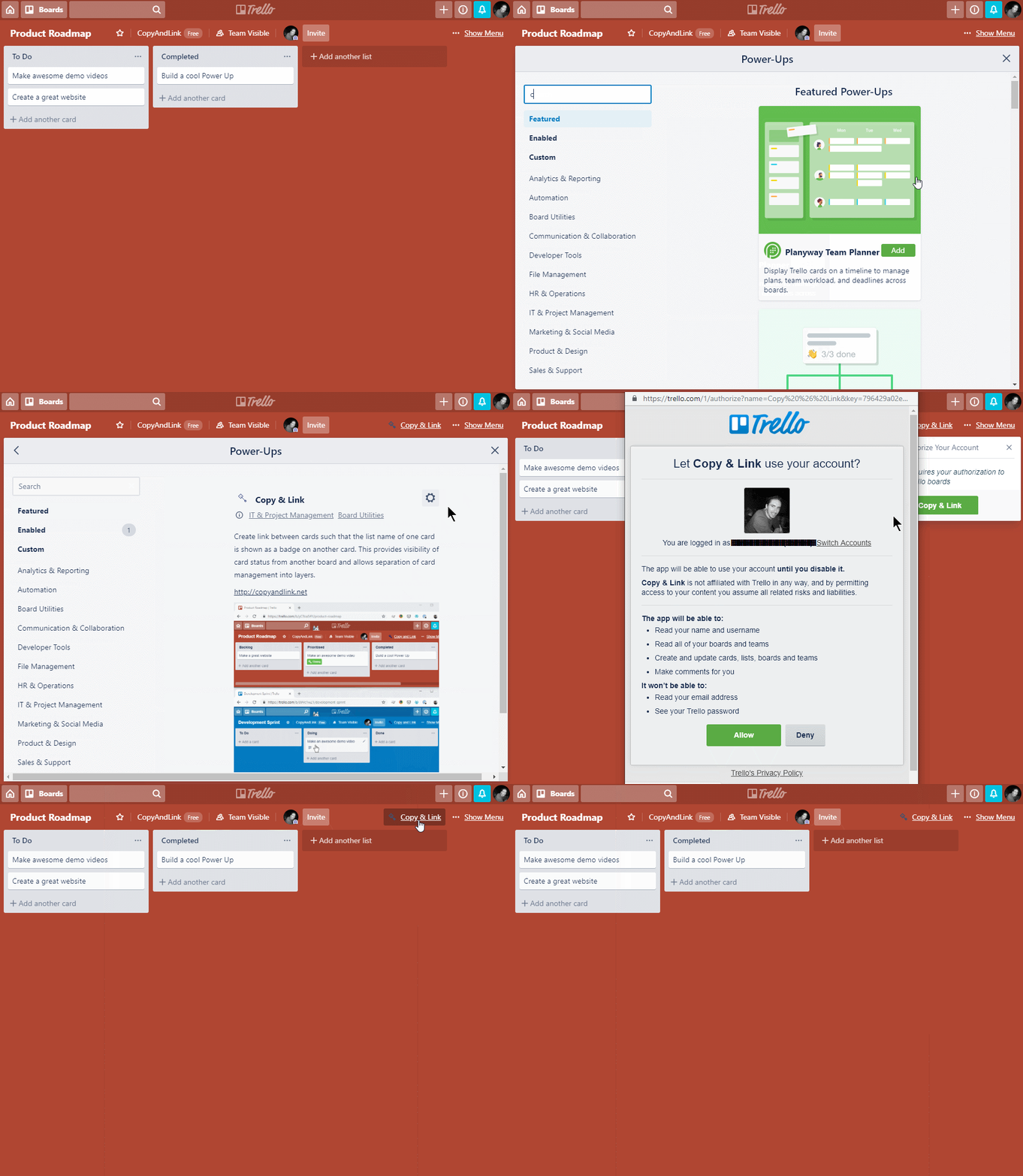
From your Trello board, open the Menu and click Power-Ups. Search for 'Copy and Link’ and click Add.
Next, click the Copy and Link settings link in the top-right of your board, click Authorize Copy and Link and then Allow. This connects the Copy & Link service to your board.
Finally, click the Copy and Link settings link again and select a destination board and column. You’re now ready to create links!
Creating a Linked Card
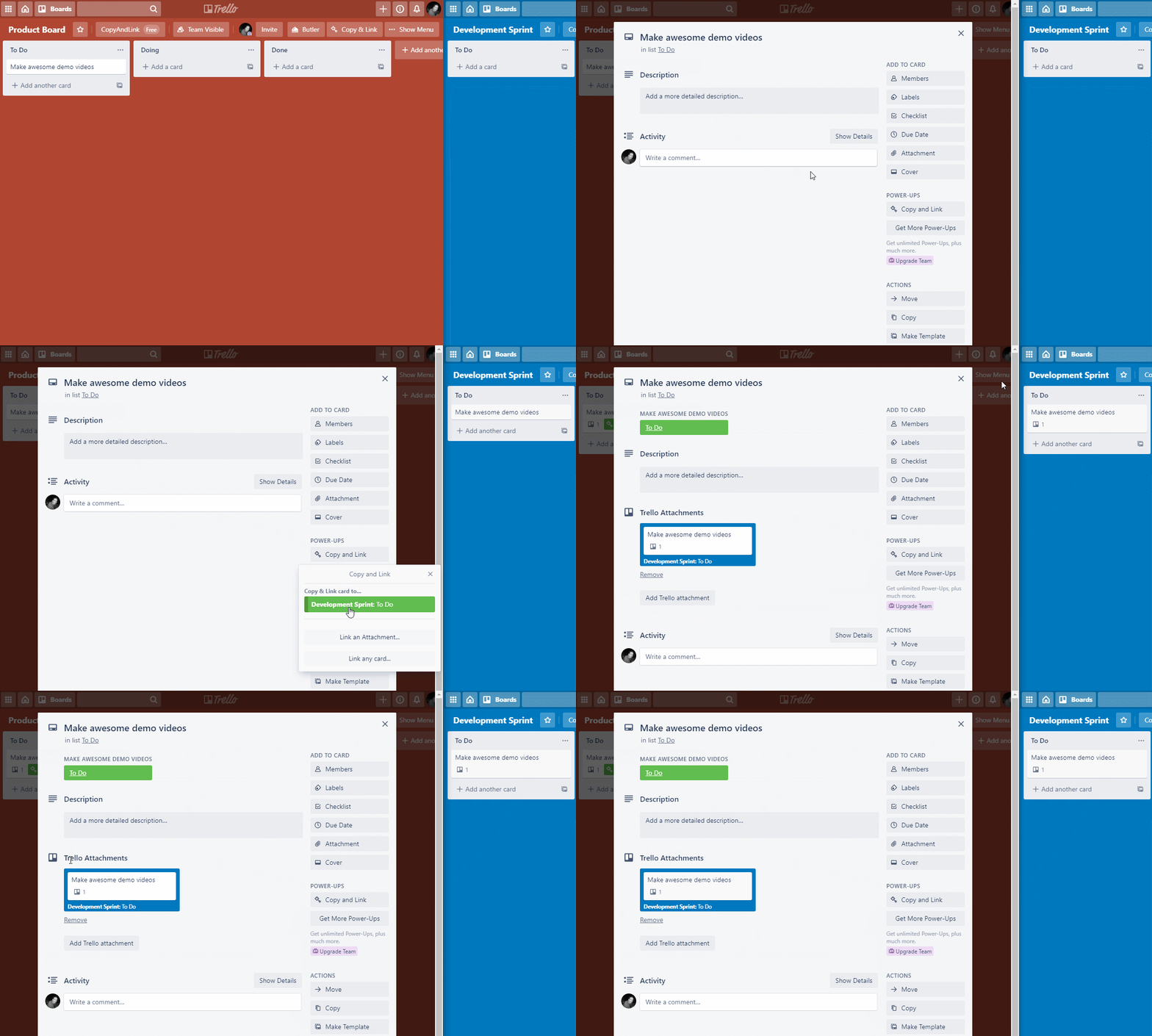
Open a Trello card you want copied into the destination board. Click Copy and Link in the Power-Ups section on the right. Click Copy Card and Link. The new card will be created and automatically linked!
Monitoring a Linked Card
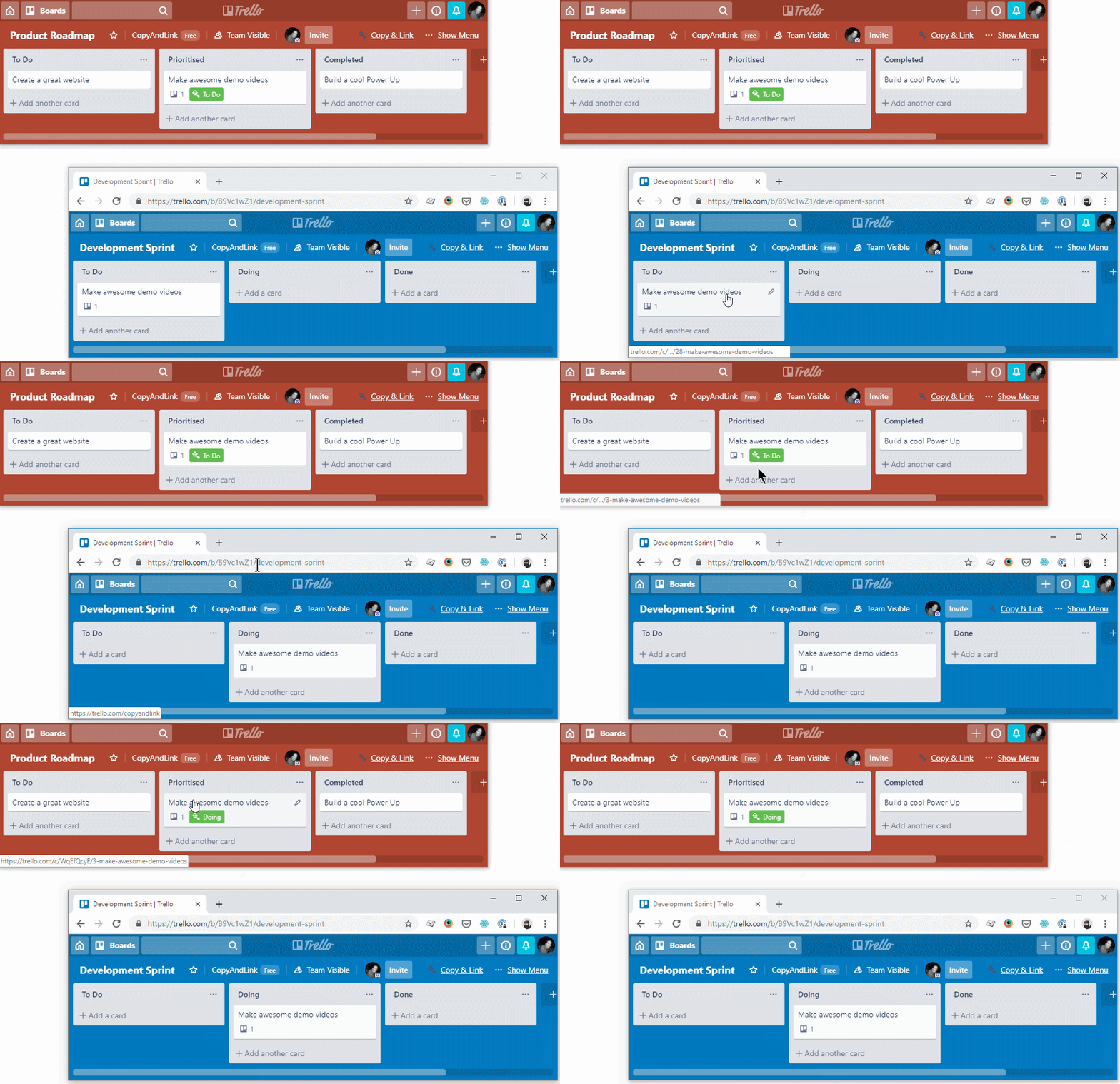
When you move a linked card, the original card will automatically show the linked card's column name as a badge. The badge will indicate if any checklist items in the linked card are not done, by showing the number of checked items along with the total number of items.
Navigating Between Cards
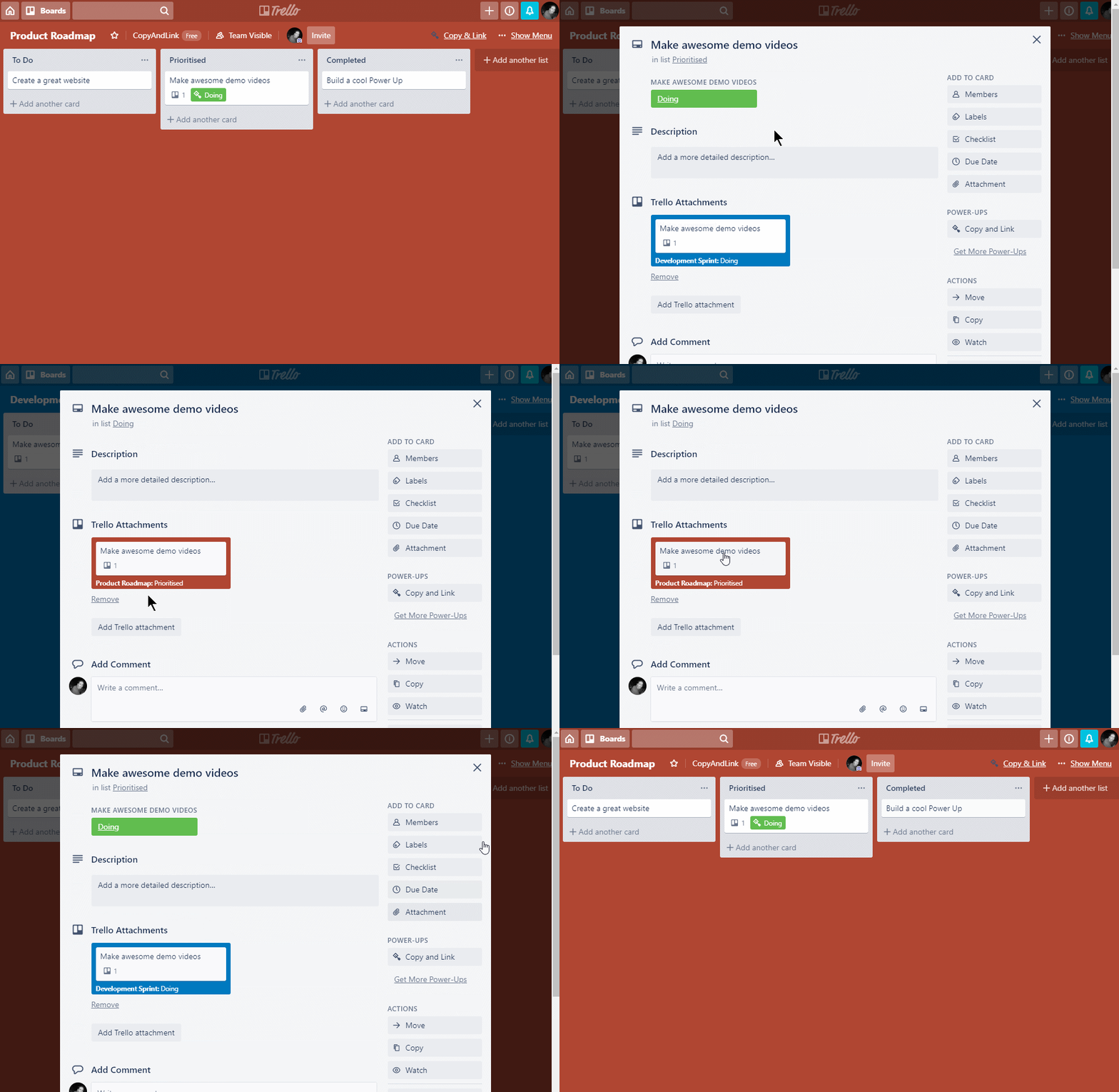
The link between cards is established both ways, however you only need to setup the Power-up on the originating board.
The link from the original card to the linked card appears as a colored badge with the linked card’s column name, and also as an attachment link.
The link from the linked card to the original card appears only as an attachment link.
Multiple target lists
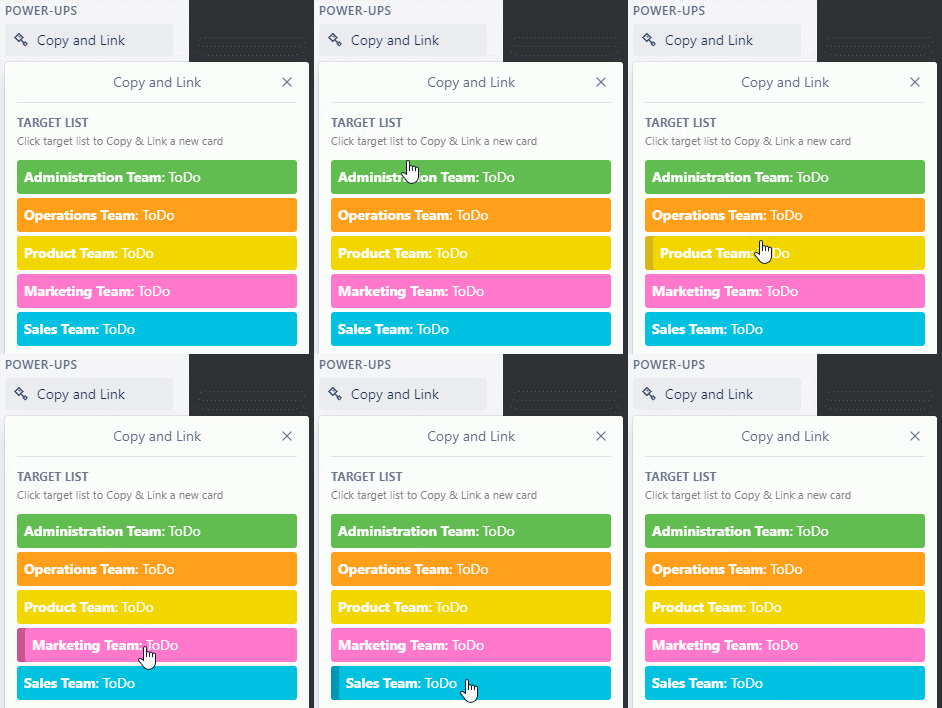
With Copy & Link PRO you can configure multiple target lists, each with their own color.
When you click the Copy & Link button from a Trello card, simply click the target list you want to use, and a newly copied card will be added to that list, and automatically linked.
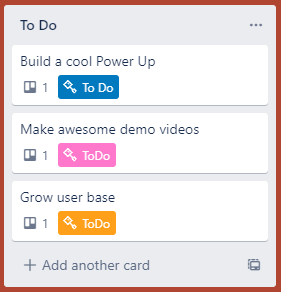
When reviewing your board, you can now view the links and distinguish bettween the different targets by the color of their badges.
Click here to purchase Copy & Link PRO
Frequently Asked Questions
Below is a list of Frequently Asked Questions on the Copy & Link Power-up.
Does Copy & Link Power-Up work on Public boards?
Yes. However, badges will only appear if the user is logged in to Trello and has visibility of the target boards that hold the linked cards. This is needed to read the linked cards' details and list name.
Only users explicitly added to the board can edit the linked cards or configure the target board and list.
Does Copy & Link work in Trello's iOS or Android app?
Unfortunately, no. Trello does not support third-party Power-Ups on their iOS or Android app. Only Trello's own Power-Ups are supported (Calendar, Custom Fields, Voting and Maps). However, you can use Copy & Link on mobile devices by using Trello from a web browser.
I can see badges for linked cards but my colleagues cannot - what's wrong?
For badges to appear the logged in user must have visibility of the boards where linked cards reside. The user must either be invited to the board, be a team member of a Team Visible board, or the board be made Public. In all cases, the user must be logged in.
The Power-Up doesn't work with third-party cookies disabled - how do I fix this?
You must add the domains the Power-Up is served from to your browser's Allow list. The Power-Up stores an authentication token which allows it to communicate with Trello and fetch board and card data.
- copyandlink.net
- www.blueanvilsoftware.com.au
- cdn.blueanvilsoftware.com.au
How often do the badges refresh?
Badge refreshing happens approximately every 30 seconds. Only badges associated with a target linked board will refresh immediately, links to cards on other boards update after about 30 seconds or more.
What is Copy & Link PRO?
Copy & Link PRO is a premium version of Copy & Link that adds additional features for professional users. It requires a paid annual subscription.
Click here to purchase Copy & Link PRO
Copy & Link PRO provides income to support our hosting costs and development of more features. We're also happy to continue sharing the free version and hopefully a few people find it useful.
How do Copy & Link PRO subscriptions work?
PRO subscriptions are charged per board. This means you need a subscription for each board that uses Copy & Link. All users on the board receive full access without additional cost.
Subscriptions are managed via Subscription Keys. A Subscription Key is a sequence of numbers and letters that are unique to your purchase. To unlock PRO mode, you must enter a valid Subscription Key into the board settings.